One-Click Timer
Start, pause and stop a worklog timer right on the Jira issue.
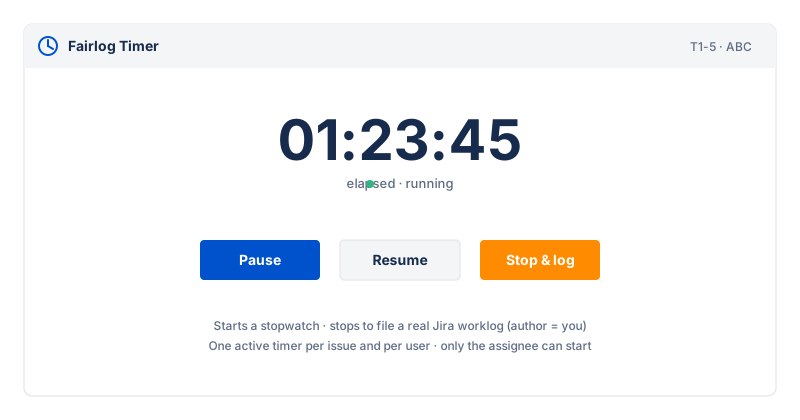
The Timer panel appears on the Jira issue view (in the issue's right-hand panel list, above the Activity panel). It lets the issue's current assignee start a stopwatch for the work they're doing right now, and stop it to file a real Jira worklog — no second app, no copy-paste of durations.
Who can use it
The Start / Pause / Stop controls are shown only to the issue's current assignee — the one person who may log work on it. Everyone else sees, at most, a read-only "someone is tracking time on this issue" status while a timer is active, so the team isn't surprised by two people logging the same work.
How it works
- Start — records the start instant and stores an active timer record, keyed by the issue. Only one timer can run per issue at a time.
- Pause / Resume — pauses the stopwatch without stopping it; the elapsed clock freezes and resumes when you resume. Useful for interruptions.
- Stop — creates a real Jira worklog from the elapsed
time (with
started= the start instant andtimeSpentSeconds= the elapsed seconds), then deletes the active-timer record. The worklog author is always the Jira user who pressed Stop (the starter), so only the starter can stop-and-log.
Where the data lives
Only the active timer (start instant + paused state) is stored, and it is deleted the moment you stop and file the worklog. No timing history is kept by the panel itself — the resulting worklog is the record, and it shows up in the audit view and My Time like any other worklog.