My Time
Self-service view for every logged-in user — your own worklogs, server-enforced.
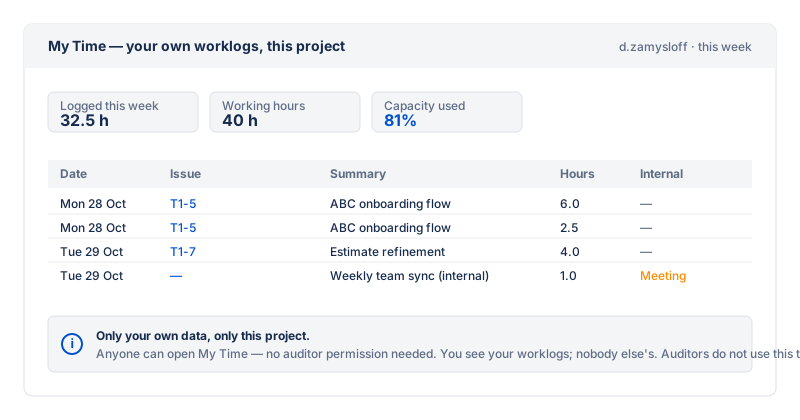
Every logged-in Jira user can open the Fairlog tab, regardless of whether they have auditor access. Without the Time Auditor permission, you see the My Time view: a flat sortable table of your own worklogs and internal-activity entries for the chosen date range or sprint.
What you see
| Column | What it shows |
|---|---|
| Issue | The issue key, linking to the issue in Jira. Internal entries show the category in a coloured lozenge instead. |
| Work started | The entry's started timestamp. |
| Hours | The time spent, in hours. |
| Logged at | The entry's created timestamp. |
What you don't see
Compared to the audit view, the My Time view deliberately omits:
- The Worker column (it would always be you).
- The Flags column (flags are for auditors reviewing the team; self-review doesn't need them).
- The member filter.
- The Activity / Capacity analytics tabs.
- Any grouping or subtotals.
Edit and delete your own entries
From a row's actions you can edit or delete your own worklogs and internal-activity entries directly in My Time. The server re-checks on every call that the entry belongs to you, so you can only mutate your own entries. Every edit and delete is recorded in the audit log.
Date range and sprint
Same filter bar as the audit view: pick a date range (From / To) or a Scrum sprint from the dropdown. Sprint mode uses the sprint's active start/end dates automatically.
Export
The three-dots menu offers two exports:
- Export to CSV — your own entries as CSV. The download token is bound to your own account, so the CSV contains only your worklogs. The token expires after 2 minutes and is single-use.
- Export to PDF — a signed timesheet of your own time for the current filter (see PDF export).
Real-time, no cache
Unlike the audit view, the My Time view bypasses the cache entirely. When you log time in Jira and open the Fairlog tab, you see it immediately — there's no 30-minute window where a cached empty result would mask your freshly logged work.