Permissions
Auditor access is just a Jira project permission — no app-managed allow-lists.
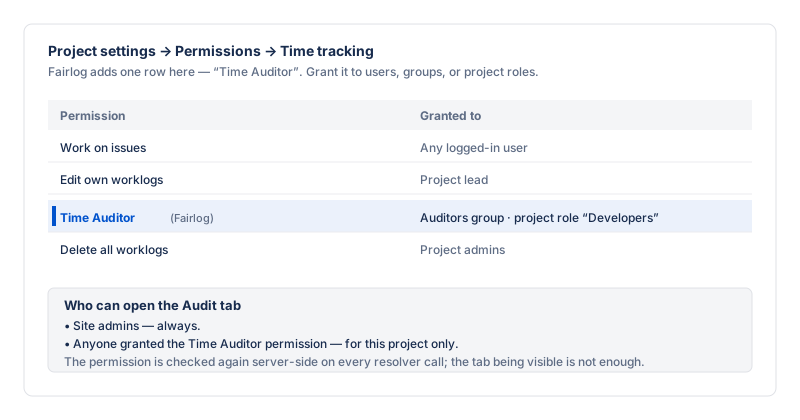
Fairlog does not have its own users database, its own roles, or its own allow-lists. Access is granted entirely through Jira's standard project permission system. A user can be an auditor in one project but not another, exactly like any other project permission.
Who is an auditor
| User type | Auditor? | How it's checked |
|---|---|---|
| Jira site admin | Always — in every project | Checked server-side on every request. |
| User with the Time Auditor project permission | Yes — in this project only | Checked server-side against Jira's project permission, on every request. |
| Every other logged-in user | No — gets the self-service My Time view | Server-enforced self-scoping: any request is rewritten on the server to use the caller's own account ID, so you only ever see your own data. |
Grant the Time Auditor permission
- As a project admin, open the project and go to Project settings → Permissions.
- Scroll to the Time tracking permission group.
- Find the Time Auditor permission.
- Click Edit and grant it to a project role or
group:
- Project role (recommended) — e.g. Developers or Scrum Masters. Add users to the role via Project settings → Users and roles.
- Group — e.g. jira-developers. Coarser; everyone in the group becomes an auditor in this project.
- Save. The user gets auditor access on their next Fairlog tab open — there's no install-wide re-permissioning step.
Who can edit working hours & internal categories
The working-hours default schedule,
the per-member schedule overrides, and the
internal-activity category
definitions are all part of the project settings
page, so they are gated to project admins
(ADMINISTER_PROJECTS), not to the Time Auditor permission.
A per-member working-hours override is admin-only; a member can see
their own schedule but not edit it or see anyone else's.
Removing auditor access
- Open Project settings → Permissions.
- Find Time Auditor in the Time tracking group.
- Edit and remove the role/group grant, or remove the specific user from the role via Project settings → Users and roles.
The user reverts to the self-service My Time view on their next interaction. No data is erased — they just stop seeing the team.
Settings page access is separate
The settings page (Project settings →
Fairlog) is gated to project admins
(ADMINISTER_PROJECTS), not to the Time Auditor permission.
A user can be an auditor without being able to change thresholds, and
vice versa — a project admin can tune thresholds without being an
auditor themselves (though in practice admins usually want both).
Why no app-managed allow-lists?
An earlier version of Fairlog had an app-managed "allowed account IDs" list and a "allowed group name" override on the settings page. Both were removed in favor of the standard Jira permission, for three reasons:
- One source of truth. Project admins already manage permissions in Jira; asking them to also manage an app list duplicates work and drifts out of sync.
- Auditable. Jira's permission scheme is reviewable in the standard permission audit; an app-managed list is hidden in app storage.
- Fail-closed by default. The previous global permission check was fail-closed and caused a security false positive. Using the project permission endpoint directly is both more accurate and more standard.